Add Rich File Storage to Your Superblocks App
Enable powerful file storage, management, and preview capabilities in your Superblocks application. Users can upload, organize, and preview files including PDF, Word, Excel, and more, with integrated cloud storage support.
Prerequisites
You will need:
- A Superblocks account with admin rights
- A Superblocks app with installed Weavy components (see Add to Your App)
Step 1: Add the Weavy Files Component
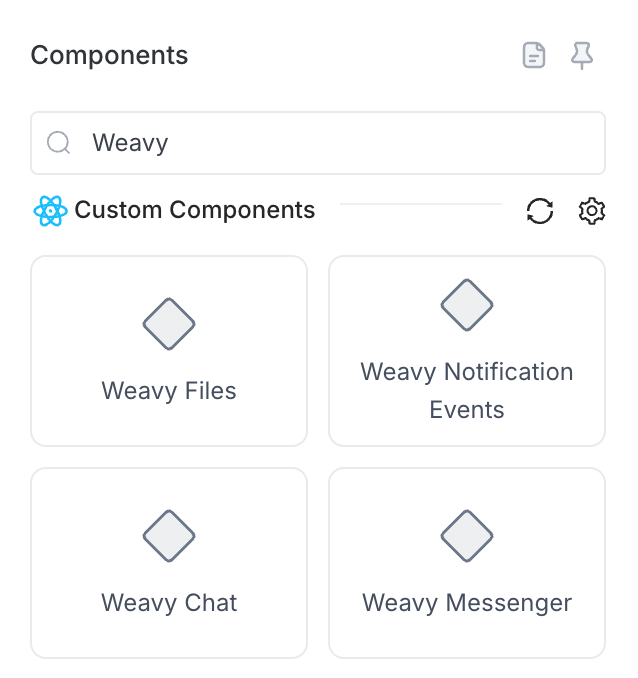
- Open the Add components panel in your Superblocks app editor
- Locate the Weavy Files component
- Drag it onto your page canvas
Step 2: Configure Files Properties
Select the Weavy Files component and set the following properties:
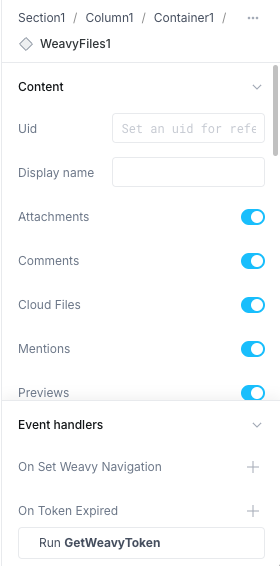
Uid (Unique identifier for the file context):
customer-files-{{Table1.selectedRowIndex}}
Display name (Human-readable title):
{{Table1.selectedRow.name}} Files
Event Handlers:
On Token Expired
- Action: Run API
- API:
GetWeavyToken
On Set Weavy Navigation
- Action: Trigger event
- Event:
setPageNavigation - Bind
uidto:WeavyFiles1.uid
Step 3: Done!
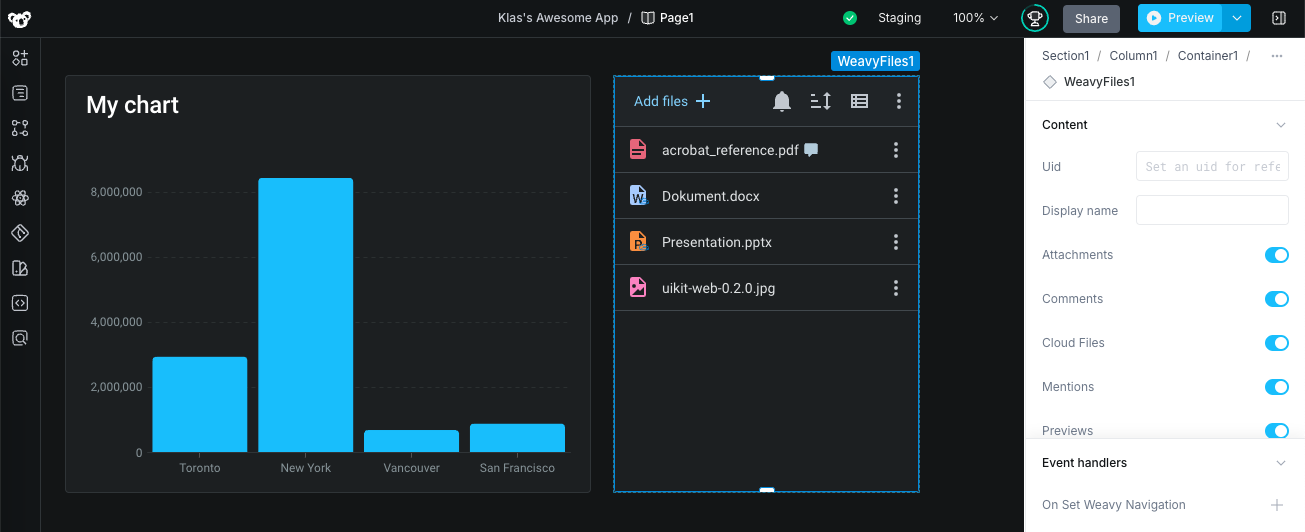
Your file storage component is now active and ready for use. Users can:
- Upload and organize files
- Preview PDFs, Word documents, Excel spreadsheets, and more
- Integrate with Google Drive, Dropbox, and other cloud storage services (see dedicated integration guides)
- Collaborate on files in real-time
Cloud Integration: For Google Drive or Dropbox support, see the dedicated integration tutorials.