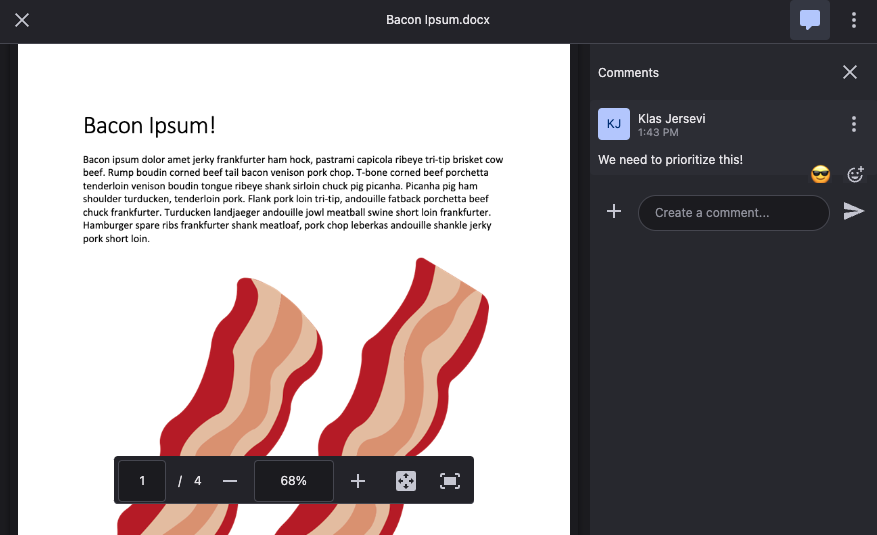
Setting up file previews in your Retool app
Weavy has built-in file preview handling. This guide shows how to set up a preview modal in Retool and how to trigger it when needed.
Prerequisites
This guide is built upon an app based on a standard multipage app template in Retool, but you may easily adapt it to any other Retool app or layout as well.
1. Prepare your Retool app
Make sure you have a Retool app ready.
To be able to easily follow the steps here you can make a simple app.
- Go to your Apps (Home) in Retool.
- Click Create and choose App.
2. Configuring Weavy
For this tutorial, we need the Retool app to be configured with a getWeavyToken query and the Weavy components library to be installed.
Make sure you have followed tutorial on What to do first in Retool.
3. Add a modal component
We'll add a modal component that is always available on top of other content when needed. The modal is where we will place the preview component later.
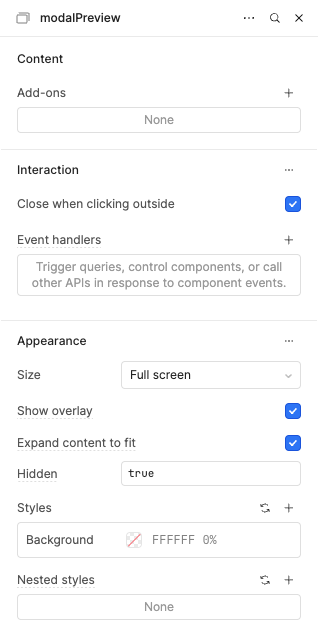
- Add a Modal Frame component to the global scope of your app and name it
modalPreview. - Remove the
HeaderandFooterAdd-ons from the Content section in the Component inspector. - Set the Size to
Full screenunder Appearance in the Component inspector. - Check the Expand content to fit under Appearance in the Component inspector.
- Add a Style for Background and set the color to a custom color with opacity
0%(fully transparent). You can set the opacity by dragging the bottom slider in the Custom color picker all the way to the left. - You can safely remove the
modalTitle1andmodalCloseButton1components from the modal.
Multipage apps If you have a multipage app, make sure the Modal Frame is placed within your Global scope and not your Page scope.
4. Add the preview component
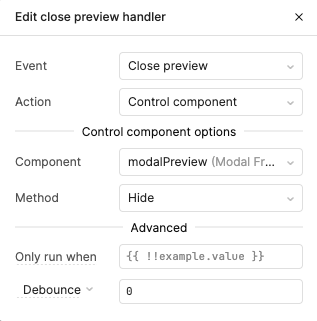
We'll add a Weavy Preview component to the modal. Configure the preview to handle the closing of the modal.
- Add a Weavy Preview component to the body of the modal.
- Add an Event handler for the
Close previewevent. Open the Component inspector for theweavyPreview1component.- Set it to Control component.
- Select the
modalPreviewcomponent. - Set the Method to
Hide.
5. Add a files component
To preview files we need some source files from a Weavy component. Let's add a Weavy Files component that can handle uploaded files and cloud files, such as files from Google Drive.
The Weavy Messenger, Weavy Chat, Weavy Comments, Weavy Files and Weavy Posts all have the capability of using file previews.
- Drag the Weavy Files component onto your page canvas.
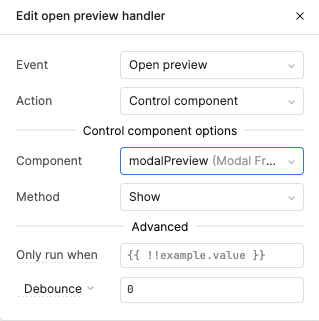
- Add an event handler for the
Open Previewevent onweavyFiles1.- Set the event action to Control component.
- Set the Component to
modalPreviewand set the Method to Show.
Additional Weavy components? Make sure to add the event handler for showing the modal On Preview for all your Weavy Components.
6. Done!
We now have full browser overlay previews available for all our Weavy components.
- Works for any added file in the Weavy Files component and any other Weavy component you have configured.
- Just click the file to open the preview!
Try the preview in full action for any file, complete with versions and comments!